Hardware Setup for Multisig
Before creating your multisig wallet, you need to set up each hardware wallet (signing device) individually. This page guides you through preparing your devices.
Recommended Hardware Combinations
For a 2-of-3 multisig, using different manufacturers eliminates single-vendor risk:
Option A: Maximum Security (Air-Gapped)
| Device | Role | Communication |
|---|---|---|
| Coldcard Mk4/Q | Key 1 | MicroSD card (air-gapped) |
| Keystone 3 Pro | Key 2 | QR codes (air-gapped) |
| Trezor Safe 3/5 | Key 3 | USB |
Option B: Balanced (User-Friendly)
| Device | Role | Communication |
|---|---|---|
| Trezor Safe 3 | Key 1 | USB |
| Ledger Nano S+/X | Key 2 | USB |
| BitBox02 | Key 3 | USB |
Option C: Budget-Conscious
| Device | Role | Communication |
|---|---|---|
| Trezor Model One | Key 1 | USB |
| Ledger Nano S+ | Key 2 | USB |
| Blockstream Jade | Key 3 | USB or QR |
A complete 3-device setup costs $200-500 depending on models chosen. This is a one-time investment to protect potentially much larger holdings.
General Setup Principles
1. Generate Seeds on the Devices
Always generate new seed phrases directly on the hardware wallets. Never:
- Import a seed you generated elsewhere
- Use a seed from a software wallet
- Share seeds between devices
Each device = Unique seed = Independent key
2. Verify Device Authenticity
Before setup:
- Purchase directly from manufacturers or authorized resellers
- Check tamper-evident packaging
- Verify firmware signatures where possible
3. Update Firmware First
Before generating seeds:
- Connect to manufacturer's official software
- Update to latest firmware
- This ensures you have latest security patches
4. Create Strong PINs
Each device needs a PIN:
- Use 6-8 digits minimum
- Don't use obvious patterns (123456, 000000)
- Don't reuse PINs across devices
- Consider writing PINs down separately from seeds (stored in different locations)
Device-Specific Setup
Coldcard Setup
Coldcard is Bitcoin-only and supports excellent air-gapped operation.
Initial Setup:
- Power on with battery pack or USB power adapter (not computer)
- Accept terms and create a PIN
- Prefix PIN (shown before words)
- Main PIN (required to access)
- Select "New Seed Words"
- Choose 24 words
- Write down all 24 words on paper/metal
- Verify by re-entering selected words
- Record the master fingerprint (8 characters, e.g.,
7C8A9B2D)
Export Public Key for Multisig:
- Insert MicroSD card
- Go to:
Advanced/Tools→Export Wallet→Generic JSON - This creates a file with your xpub for the coordinator software
Label your Coldcard with a number (1, 2, or 3) using the included stickers.
Trezor Setup
Trezor offers excellent software integration with Sparrow.
Initial Setup:
- Connect to computer via USB
- Open Trezor Suite or Sparrow Wallet
- Select "Create new wallet"
- Choose 12 or 24 words (24 recommended for multisig)
- Write down all words on paper/metal
- Verify by re-entering words
- Create a PIN (up to 50 digits)
- Note the master fingerprint (visible in Sparrow after connecting)
For Multisig:
- Trezor works via USB connection with Sparrow
- No export file needed—Sparrow reads directly from device
Keystone Setup
Keystone uses QR codes for fully air-gapped operation.
Initial Setup:
- Power on and select language
- Create a password (device access)
- Select "Create New Wallet"
- Choose 24 words
- Write down all words on paper/metal
- Verify the seed phrase
- Note the master fingerprint from wallet info
Export for Multisig:
- Go to:
Menu→Multisig Wallet→ three dots →Show/Export XPUB - Can export via QR code or to MicroSD
BitBox02 Setup
BitBox02 offers simple setup with strong security.
Initial Setup:
- Connect via USB
- Open BitBox App
- Select "Create wallet"
- Device generates 24-word seed
- Write down all words on paper/metal
- Verify on device
- Set device password
For Multisig:
- BitBox02 works directly with Sparrow via USB
- Note the fingerprint shown in Sparrow
Ledger Setup
Ledger devices work with most multisig coordinators.
Initial Setup:
- Connect via USB
- Set up PIN (4-8 digits)
- Select "Set up as new device"
- Write down the 24-word recovery phrase
- Confirm words on device
- Install Bitcoin app via Ledger Live
For Multisig:
- Works with Sparrow via USB
- Note: Ledger uses closed-source firmware
Recording Device Information
For each device, create a record card:
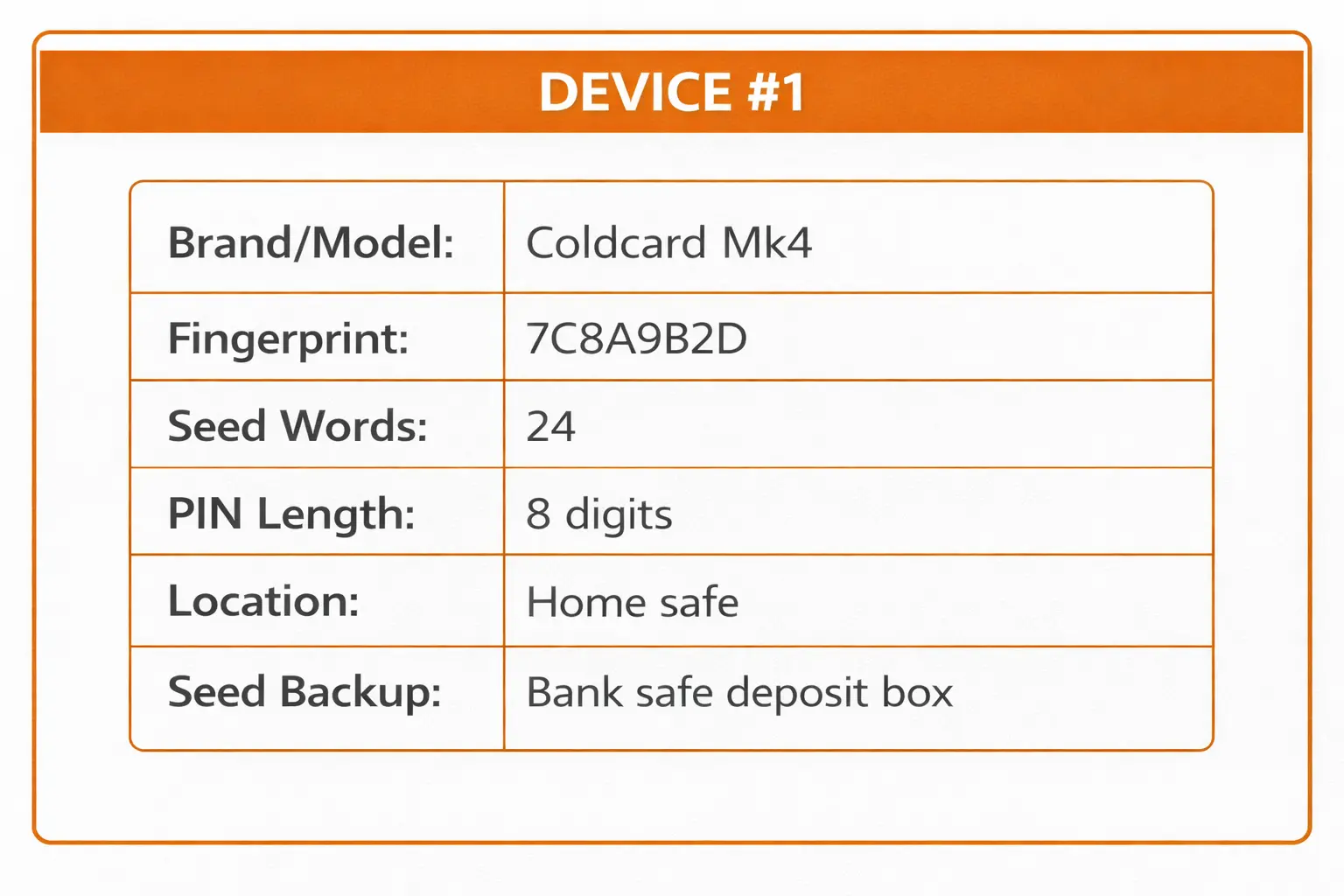
Important: Store this record SEPARATELY from the seed phrases.
Seed Phrase Backup
Why Metal Backups Matter
Paper can be destroyed by:
- Fire
- Water/flooding
- Ink fading over time
- Accidental disposal
Metal seed backups survive these disasters.
Recommended Metal Backup Options
| Product | Type | Price Range |
|---|---|---|
| Blockplate | Punch plates | $80-100 |
| Cryptosteel | Letter tiles | $80-100 |
| Seedplate | Stamp/punch | $50-80 |
| Billfodl | Letter tiles | $80-100 |
Backup Process
- Set up hardware wallet and verify seed works
- Transfer seed to metal backup carefully
- Verify metal backup by reading it back
- Store metal backup in secure location (NOT with the device)
Seed Backup Locations for 2-of-3
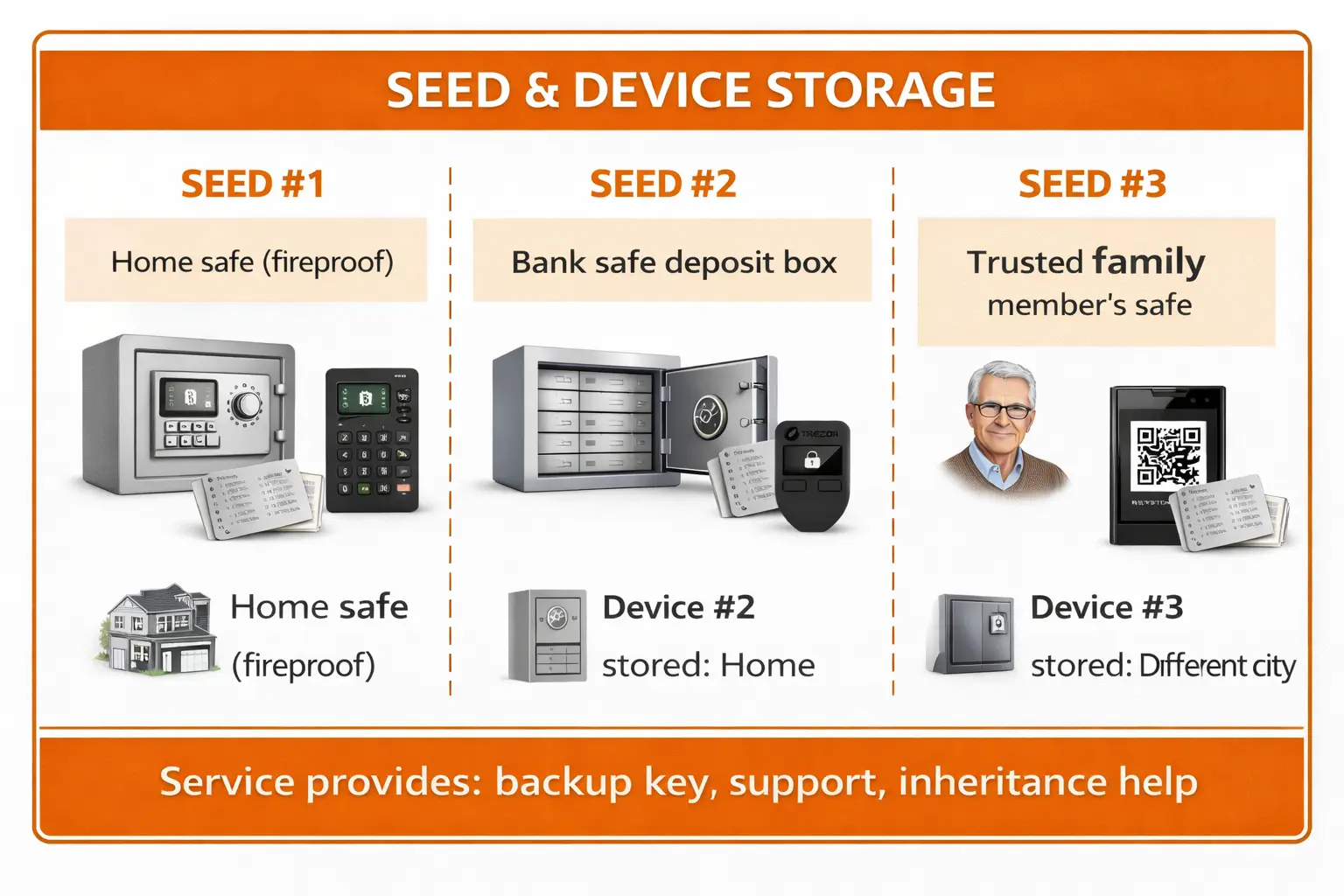
Never store a seed phrase with its corresponding device!
Pre-Multisig Checklist
Before proceeding to create your multisig wallet, verify:
- All 3 devices are set up with unique seed phrases
- All 3 seed phrases are backed up on metal
- Each seed backup is in a different physical location
- You've recorded the master fingerprint for each device
- Each device has a unique PIN you can remember
- Firmware is up to date on all devices
- You've labeled each device (1, 2, 3) for easy identification
Before creating the multisig, verify each seed works:
- Reset one device to factory
- Restore from its seed backup
- Confirm the fingerprint matches
- Repeat for each device
This confirms your backups are correct BEFORE you deposit funds.
Next Steps
With your hardware wallets prepared:
→ Continue to Sparrow Wallet Setup to create your 2-of-3 multisig wallet.