Connect Sparrow Wallet to Your Node
This is the moment everything comes together. You've set up Bitcoin Core. You've indexed the blockchain with an Electrum server. Now you'll connect your wallet—and from this point forward, your Bitcoin activity stays between you and your own infrastructure.
If You Used Parmanode
Here's the beautiful part: if you installed Sparrow through Parmanode, it's already configured. Launch Sparrow and it will automatically connect to your local Electrum server. No manual configuration needed.
The connection indicator in the bottom-right corner should turn blue, indicating a successful private connection to your own server.
If it's not connecting, check that:
- Your Electrum server (Fulcrum or electrs) is running
- Bitcoin Core is fully synced
- The Electrum server has finished its initial indexing
Manual Configuration
If you installed Sparrow separately, or need to reconfigure the connection, follow these steps:
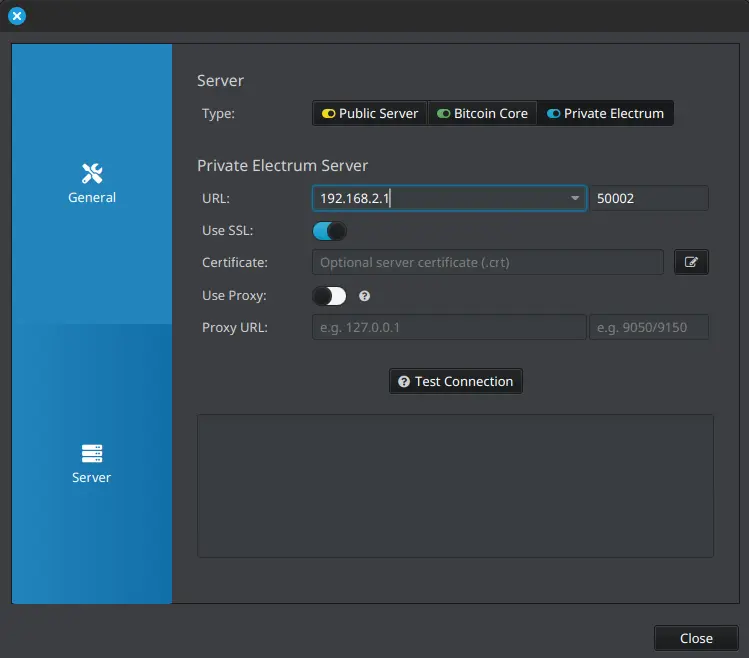
Step 1: Open Server Settings
In Sparrow Wallet:
- Go to File → Preferences (or Settings on some versions)
- Click Server in the left sidebar
Step 2: Enter Your Server Details
You need three pieces of information:
| Field | Value | Notes |
|---|---|---|
| URL | Your server's IP address | e.g., 192.168.1.100 or 127.0.0.1 |
| Port | 50002 (SSL) or 50001 (non-SSL) | 50002 recommended |
| SSL | Enabled (for port 50002) | Toggle on |
Finding Your Server Address
If using Parmanode: Check the Electrum server menu—connection details are displayed there.
If on the same computer as your node: Use 127.0.0.1 (localhost).
If on a different computer on your home network: Use your node's local IP address (like 192.168.1.100). You can find this in your router's admin panel or by running ip addr on your node.
If connecting remotely via Tor: Use your onion address.
Step 3: Test the Connection
Click Test Connection. You should see:
- ✅ Connection successful
- Server version information
- Block height matching the current blockchain
If the test fails, see Troubleshooting below.
Step 4: Enable the Connection
Toggle the switch in the bottom-right to enable the connection. The indicator should turn blue, showing an active private connection.
Connecting from Outside Your Home
When you're away from home, your local IP address won't work. You have two options:
Option 1: Tor (Recommended)
If your Electrum server has a Tor hidden service configured, use the onion address:
- In Sparrow, go to File → Preferences → Server
- Enable Use Proxy
- Set proxy to
127.0.0.1:9150(Tor Browser) or127.0.0.1:9050(Tor daemon) - Enter your onion address as the URL (e.g.,
abc123xyz.onion) - Port:
50001 - SSL: Off (Tor already encrypts)
Option 2: VPN to Home Network
If you have a VPN configured to your home network, connect to the VPN first, then use your node's local IP address as usual.
Verifying Your Privacy
Once connected, you can verify you're using your own node:
- Check the server indicator — Should show your IP or onion address, not a public server
- Look at the block height — Should match your node's sync status
- Create a new wallet — Address queries should complete quickly (your server is local)
You're no longer leaking your addresses to random public servers. Every query goes to your own infrastructure.
Connecting Other Wallets
The same Electrum server can serve multiple wallets:
Electrum Wallet:
- Tools → Network → Server
- Enter your server address and port
BlueWallet (mobile):
- Settings → Network → Electrum Server
- Enter your server address (use Tor for remote access)
Nunchuk:
- Settings → Network Settings
- Configure Electrum server connection
Troubleshooting
"Connection refused"
- Is your Electrum server running? Check in Parmanode or via process manager.
- Is Bitcoin Core fully synced? The Electrum server waits for Core.
- Has the Electrum server finished indexing? Initial index takes 12-48 hours.
- Are you using the correct port? Try both 50001 and 50002.
"Connection timed out"
- Is the IP address correct? Verify your node's address.
- Are you on the same network? Local IPs don't work remotely.
- Is a firewall blocking the connection? Check your node's firewall settings.
Connection works but wallet shows wrong balance
- Wait for the wallet to fully sync with the server
- Check if the Electrum server has finished indexing
- Try rescanning the wallet (Wallet → Settings → Rescan)
Tor connection not working
- Is Tor running on your device? Verify the proxy is available.
- Is the onion address correct? Check your node's Tor configuration.
- Is the port correct? Tor connections typically use 50001 (non-SSL).
Key Takeaways
- Parmanode users: Sparrow auto-connects—no manual setup needed
- Manual setup: Server IP + port 50002 + SSL enabled
- Remote access: Use Tor onion address with proxy configured
- Blue indicator: Confirms private connection to your own server
Next Steps
You're done! Your wallet now connects privately to your own node. Every balance check, every transaction broadcast—all verified by your own infrastructure.
→ Learn more: Why Run Your Own Node
→ Privacy: Why Privacy Matters
→ Back: Bitcoin Node Guide — Complete guide overview