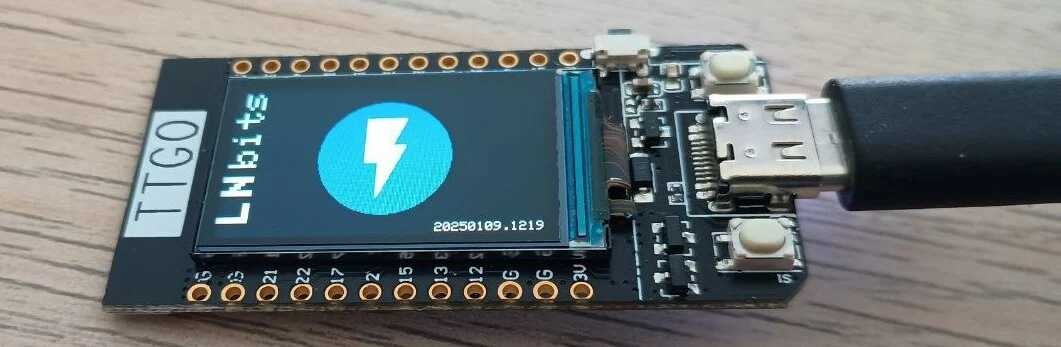
Setting up the Nostr Signing Device
Clone the GitHub repository:
Open a terminal and run:
git clone https://github.com/lnbits/nostr-signing-device.git
Copy Required Libraries
Navigate to the libraries folder:
cd nostr-signing-device/libraries
Copy all the files in this folder and paste them into the Arduino/libraries directory (which should be empty if you just installed Arduino).
cp -r . ~/Arduino/libraries
Connect Your Nostr Signing Device (NSD)
Plug in your device via USB.
Upload the Firmware Using Arduino IDE
- Open Arduino IDE.
- Go to
Tools → Portand select the correct serial port (e.g.,/dev/ttyACM0). - Click
File → Open, then selectsnsd.inofrom thenostr-signing-device/snsd/folder. - Click the Upload button (right-facing arrow in the toolbar).
Verify Installation
If the upload completes without errors, your NSD is ready! You should see the LNbits welcome screen on the display.